
How to: Check for Valid Proxmox VM Backups using Nodered

I've always worried that I'll have no backup when disaster strikes. What if the scheduled backup didn't run at all or what if it failed and I never noticed? That would really suck especially if I had no other backups.
Backup jobs can be configured in Proxmox to send email notifications right? Well I consider them difficult to read at a glance, and way too easy to ignore. Plus this check can catch issues that may show up after successful VM backups.
The end goal of this flow is to validate that I have backups and that they're not too old. I run my backups in the middle of the night on Tuesday, so by the time this flow runs that evening, everything should be current. If a backup is over 2 days old, this flow sounds the alarm by sending a pushover message to my phone. Also a fair disclaimer, this project contains AI generated code.
Although I'd love to provide a copy paste of the full flow from the screenshot above it contains sensitive information like API keys, so I'm just going to discuss a few of the nodes that I think would help you get started with a similar flow.
Consider this post BYOF 😉
The Logic:
- Proxmox VM Backups: Run every Tuesday early in the morning.
- The Trigger: Runs every Tuesday night (via CronPlus) to check my most critical VM IDs.
- The API: It pings the Proxmox Backup Server API (
/api2/json/admin/datastore/Backups/snapshots). - Check Backup Age and Format Message: A function node compares the backup time against the current time. If any VM hasn't had a successful snapshot in over 48 hours, it flags it.
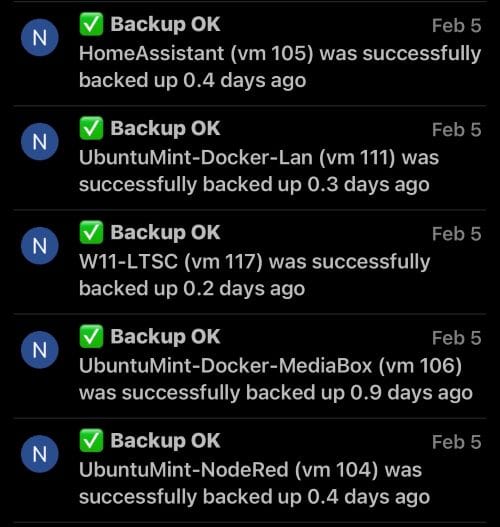
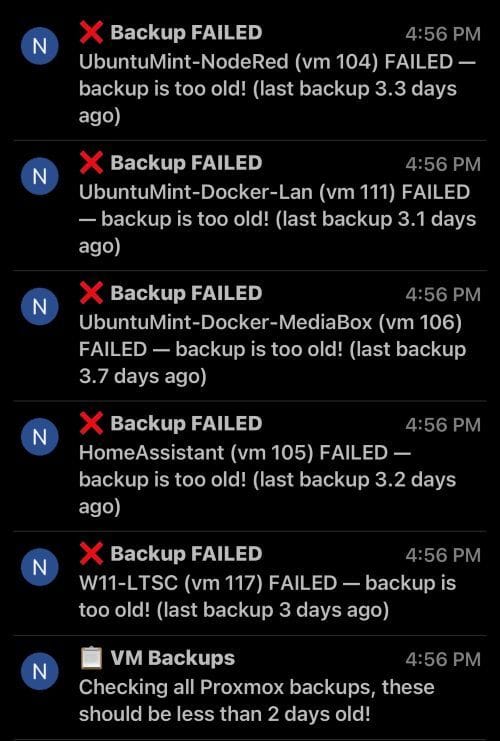
- The Alert: Sends a Pushover notification to my phone with the specific VM ID and information. It'll send notifications for both successful and failed backup statuses.
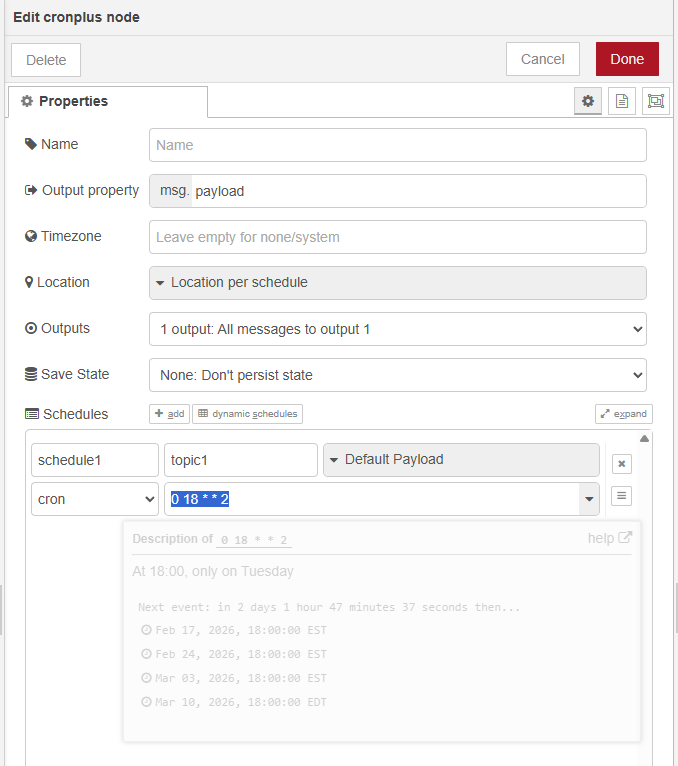
➕ Node: CronPlus
Here I use Cron to choose when to run this flow. I choose every Tuesday at 6 PM.
I wish Windows Task scheduler was this easy!
➕Function Node: Specify VM IDs
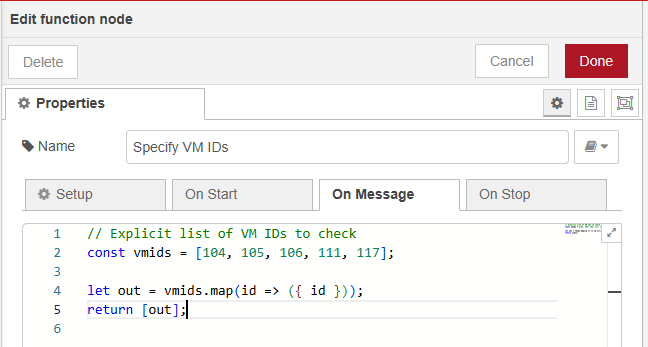
This is a function node with a comma separated list of specific VM IDs that we'll check for backups of.
Code:
// Explicit list of VM IDs to check
const vmids = [104, 105, 106, 111, 117];

let out = vmids.map(id => ({ id }));
return [out];
➕ Function Node: Backup Check Started MSG
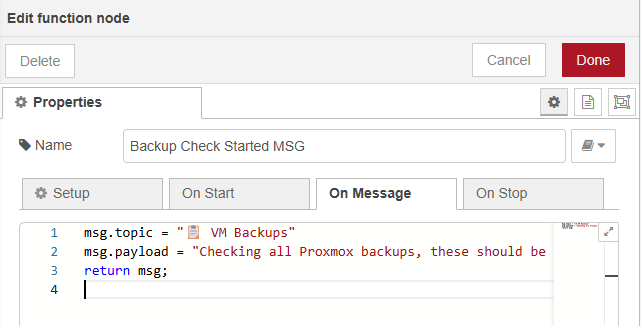
This is a function node that serves as a messenger to say this thing just started, and VM backup details will be available soon.
Code:
msg.topic = "📋 VM Backups"
msg.payload = "Checking all Proxmox backups, these should be less than 2 days old!";
return msg;
➕ HTTP Request Node: Query PBS for Snapshot AGE
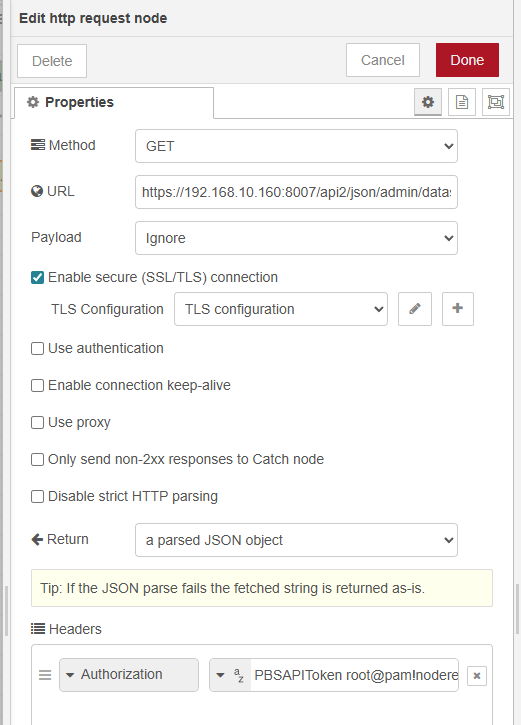
This is an http request node that checks the age of VM snapshots.
URL:
https://192.168.10.160:8007/api2/json/admin/datastore/Backups/snapshots?backup-type=vm&backup-id={{id}}
Make sure to change the IP address to match your proxmox backup server IP address.
Authorization:
PBSAPIToken root@pam!nodered:REDACTEDKEY
Change the API user to match the one you've setup. Also update the section that says :REDACTED with your own key IE :yourkey123... Read the API KEY Setup in the section below this one to set the correct permissions for the API Key.
➕ Detail: Proxmox Backup Server API Key Setup
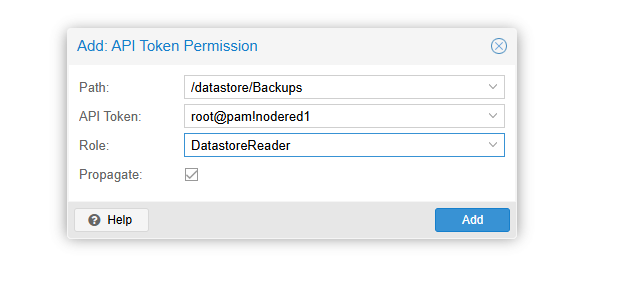
Path: /datastore/Backups
Role: DatastoreReader
This is what I think the minimum requirment is for checking for backups.
➕ Function Node: Check Backup Age and Format MSG
A function node to crunch the backup age and pass it on. I’ve set a simple rule: if a backup is more than 2 days old, it’s failed since it should've been backed up within that time frame.
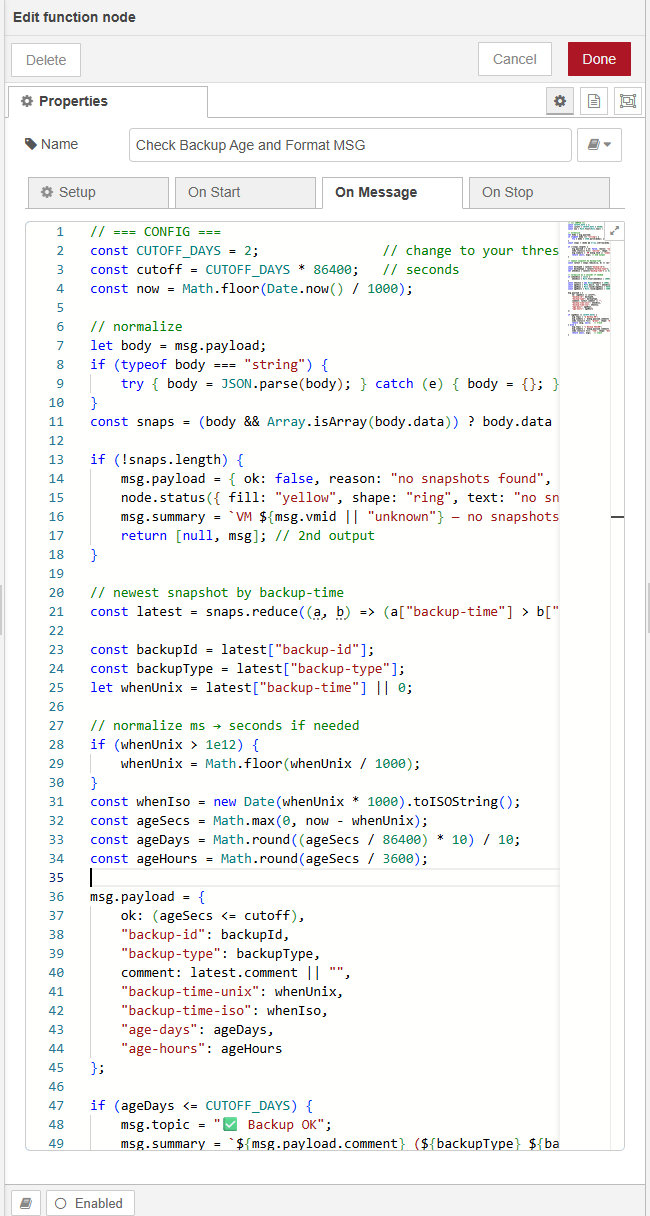
Code:
// === CONFIG ===
const CUTOFF_DAYS = 2;                // change to your threshold
const cutoff = CUTOFF_DAYS * 86400;   // seconds
const now = Math.floor(Date.now() / 1000);

// normalize
let body = msg.payload;
if (typeof body === "string") {
    try { body = JSON.parse(body); } catch (e) { body = {}; }
}
const snaps = (body && Array.isArray(body.data)) ? body.data : [];

if (!snaps.length) {
    msg.payload = { ok: false, reason: "no snapshots found", vmid: (msg.vmid || body["backup-id"] || "unknown") };
    node.status({ fill: "yellow", shape: "ring", text: "no snapshots" });
    msg.summary = `VM ${msg.vmid || "unknown"} — no snapshots found`;
    return [null, msg]; // 2nd output
}

// newest snapshot by backup-time
const latest = snaps.reduce((a, b) => (a["backup-time"] > b["backup-time"] ? a : b));

const backupId = latest["backup-id"];
const backupType = latest["backup-type"];
let whenUnix = latest["backup-time"] || 0;

// normalize ms → seconds if needed
if (whenUnix > 1e12) {
    whenUnix = Math.floor(whenUnix / 1000);
}
const whenIso = new Date(whenUnix * 1000).toISOString();
const ageSecs = Math.max(0, now - whenUnix);
const ageDays = Math.round((ageSecs / 86400) * 10) / 10;
const ageHours = Math.round(ageSecs / 3600);

msg.payload = {
    ok: (ageSecs <= cutoff),
    "backup-id": backupId,
    "backup-type": backupType,
    comment: latest.comment || "",
    "backup-time-unix": whenUnix,
    "backup-time-iso": whenIso,
    "age-days": ageDays,
    "age-hours": ageHours
};

if (ageDays <= CUTOFF_DAYS) {
    msg.topic = "✅ Backup OK";
    msg.summary = `${msg.payload.comment} (${backupType} ${backupId}) was successfully backed up ${ageDays} days ago`;
    node.status({ fill: "green", shape: "dot", text: `OK ${ageDays}d` });
    return [msg, null];   // fresh
} else {
    msg.topic = "❌ Backup FAILED";
    msg.summary = `${msg.payload.comment} (${backupType} ${backupId}) FAILED — backup is too old! (last backup ${ageDays} days ago)`;
    node.status({ fill: "red", shape: "dot", text: `old ${ageDays}d` });
    return [null, msg];   // stale
}
➕ Function Node: Convert MSG Summary to Payload
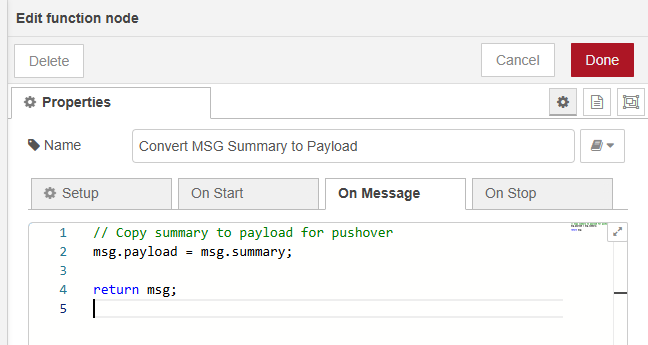
Code:
// Copy summary to payload for pushover
msg.payload = msg.summary;

return msg;
➕ Node: Pushover (Alert Message)
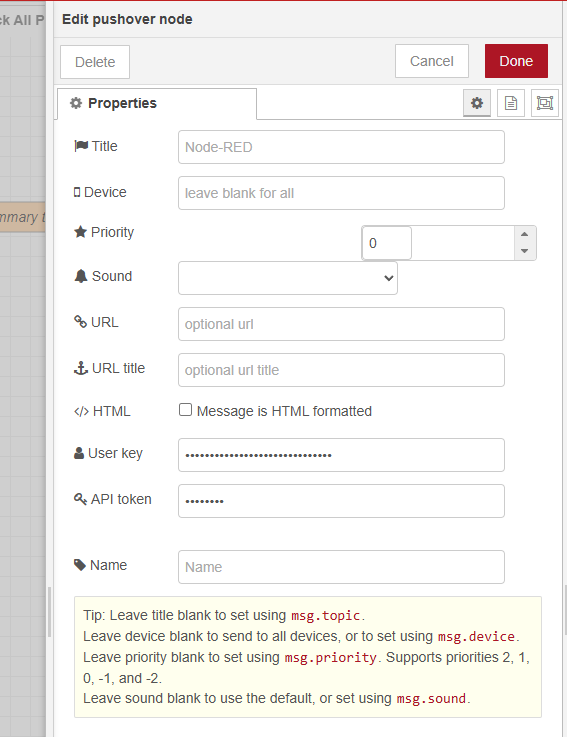
For User Key fill in your pushover user key, that key can be found on the pushover dashboard page. For API token you'll need a pushover application API key, to grab that goto the registering a new app section on pushover's site.
Ok and now the Results!


Member discussion